
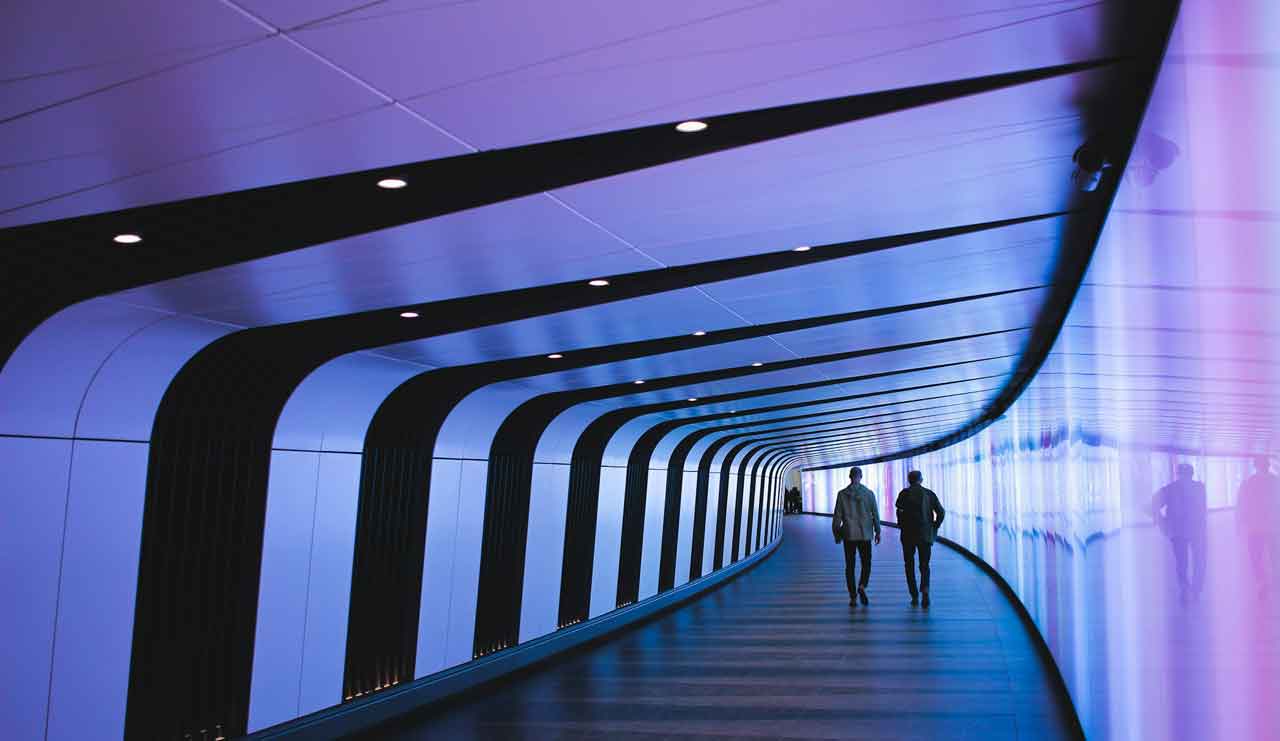
A post can have a great idea and still look amateur: the light is dull, a stranger walks through the frame and the crop cuts off the subject. Most of these problems are quick to fix with AI photo editing, and you do not need design software. This guide covers seven fixes that make social posts look more professional, what to type for each and the mistakes that make edits look fake.

What Makes a Social Post Look Unprofessional?
Posts look unprofessional when the light is flat, the background distracts or the crop fights the platform, and all three can be fixed with a few plain-language edits. If you want to edit your photos with text prompts, start with the problem viewers notice first:
- Dull or uneven light. The subject blends into the background.
- A distracting background. Strangers, signs or clutter pull the eye away.
- The wrong crop or ratio. The subject is cut off, or the photo leaves empty bars on the platform.
- A mismatched feed. Each photo has a different colour and mood.
- An over-edited look. Plastic skin and glowing edges tell viewers the image was heavily processed.
Edit one thing at a time and compare each result with the original.
Which 7 AI Photo Fixes Make the Biggest Difference?
Fix the light first, then the background, then the clutter, then the crop, because each step builds on the one before.
1. Brighten Dull Light and Fix Colour Casts
Lift the subject so it is the cleanest, brightest part of the frame, and neutralise any yellow or blue cast. Whites should look white.
2. Replace a Distracting Background
Swap a busy backdrop for a softly blurred or neutral one, and keep the subject untouched. Match the new background’s light direction to the subject’s.
3. Remove People, Signs and Clutter
Name each thing to remove, for example the person on the left and the bin behind the table. Small, specific instructions work better than “clean up the photo”.
4. Extend the Photo to Fit Every Format
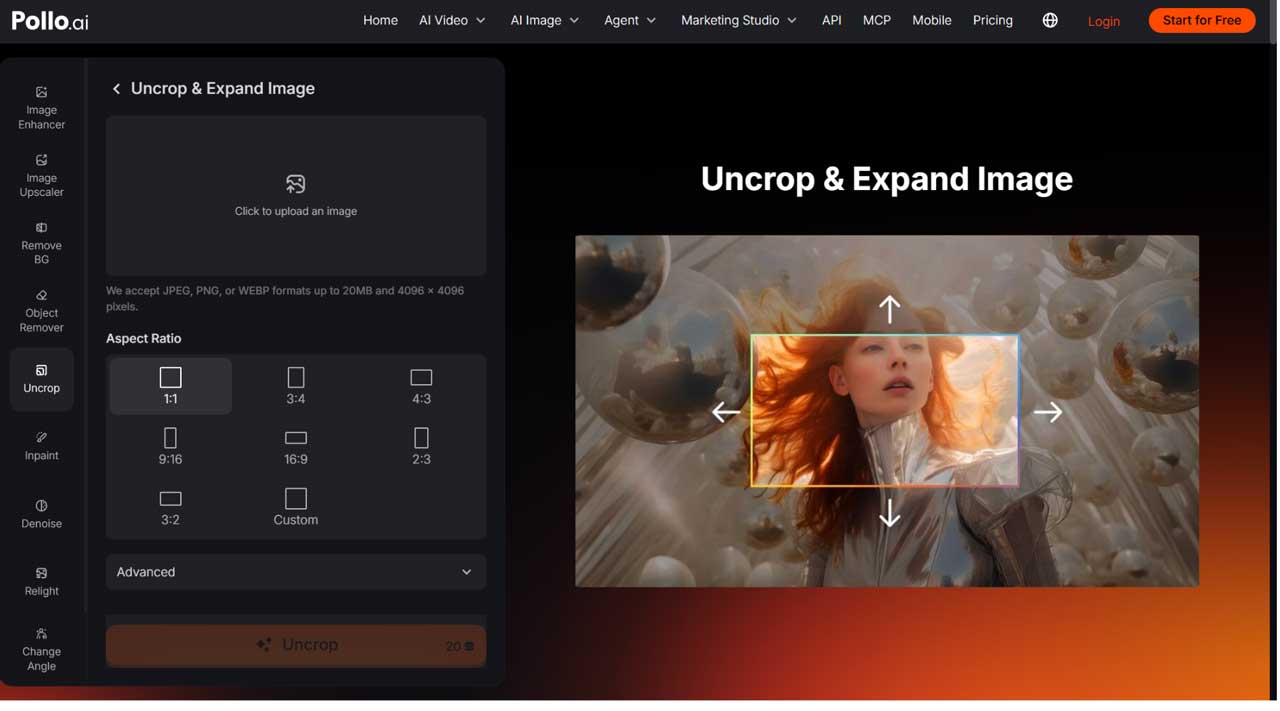
A landscape shot can become a 4:5 post without cropping the subject if you extend your photo to fit any format and let AI generate the extra background. Extend only empty areas, never the subject’s edges.
5. Match the Colour and Mood Across Your Feed
Use the same instruction on every photo, such as “warm, soft film look”, so your posts feel like one set.
6. Clean Up Small Distractions
Remove dust, stray cables and lens marks. Keep skin texture natural, because over-smoothing is the quickest way to look fake.
7. Check at Phone Size Before You Post
View the edit at the size of a phone screen and next to the original. Keep the version that looks more natural, not more dramatic.
What Should You Type for Each Fix?
Use a short instruction that says what to change and what to keep.
| Problem | Instruction to type | Check afterwards |
| Dull light | “Brighten the subject, soften harsh shadows, make the whites neutral” | Skin tones still look natural |
| Busy background | “Replace the background with a softly blurred neutral wall, keep the subject unchanged” | Light direction matches |
| Clutter | “Remove the person on the left and the bin behind the table” | No smudged edges |
| Wrong ratio | “Extend the background so the photo fits 4:5” | Subject edges unchanged |
| Inconsistent feed | “Apply a warm, soft film look” | Same look on every photo |
How Do You Edit a Photo Step by Step?
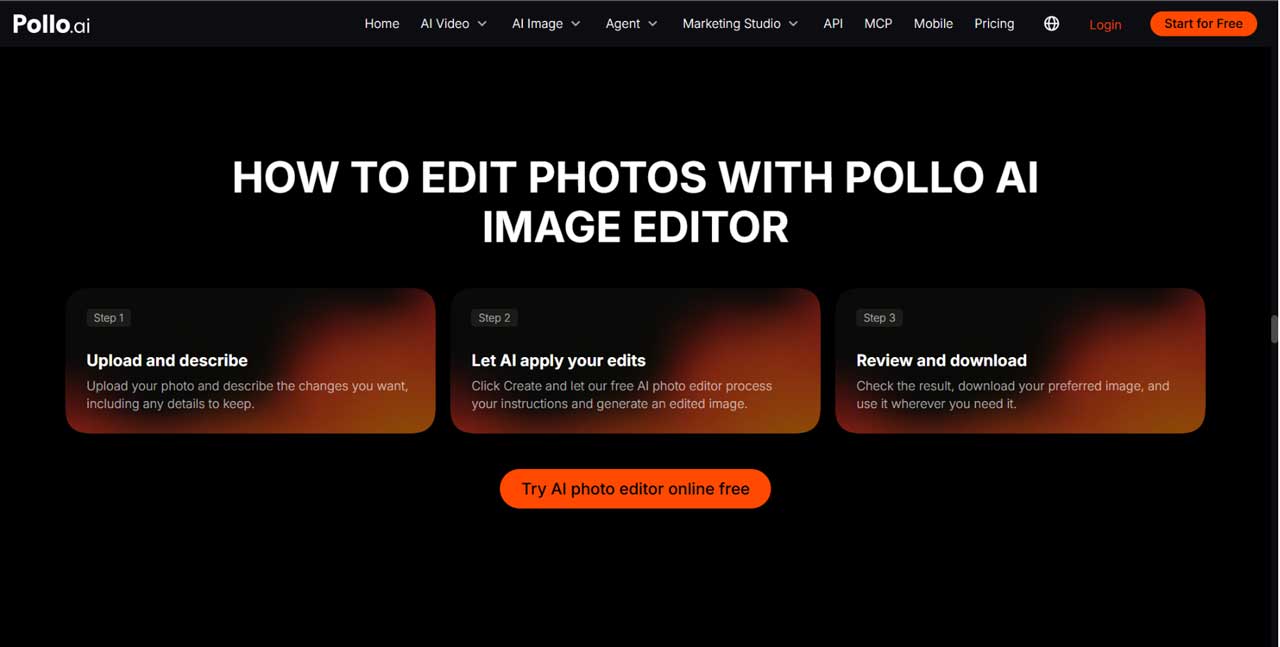
Upload the photo, describe the change and what to keep, then review the result before you download it.
- Upload and describe. On Pollo AI, add your photo and write the change you want, including any details that must stay the same.
- Let the AI apply the edit. Click create and let the editor process your instruction.
- Review and download. Zoom in on edges, faces and text, then keep the version that looks most natural.
The free plan includes 20 one-time credits, so check the credit cost before each edit and start with your most important photo. Free outputs may carry a watermark, so check the plan details before you publish.
What Mistakes Make AI Edits Look Fake?
Most fake-looking edits come from changing too much at once.
- Over-smoothing skin. Keep pores and texture.
- Mismatched light after a background swap. Shadows must fall the same way as in the original.
- Distorted text and logos. Check signs, labels and logos after every edit.
- Edits that differ from photo to photo. Reuse the same instruction across a set.
- Skipping the original. Compare with the original before you post.
Ready to Fix Your Next Post?
Start with the fix that matters most for your photo. Upload it to Pollo AI, fix the light first, and compare the result with the original at phone size.